| .. | ||
| charts | ||
| templates | ||
| tests | ||
| .helmignore | ||
| Chart.yaml | ||
| README.md | ||
| values.yaml | ||

Grafana OnCall Helm Chart
This Grafana OnCall Chart is the best way to operate Grafana OnCall on Kubernetes. It will deploy Grafana OnCall engine and celery workers, along with RabbitMQ cluster, Redis Cluster, and MySQL 5.7 database. It will also deploy cert manager and nginx ingress controller, as Grafana OnCall backend might need to be externally available to receive alerts from other monitoring systems. Grafana OnCall engine acts as a backend and can be connected to the Grafana frontend plugin named Grafana OnCall. Architecture diagram can be found here
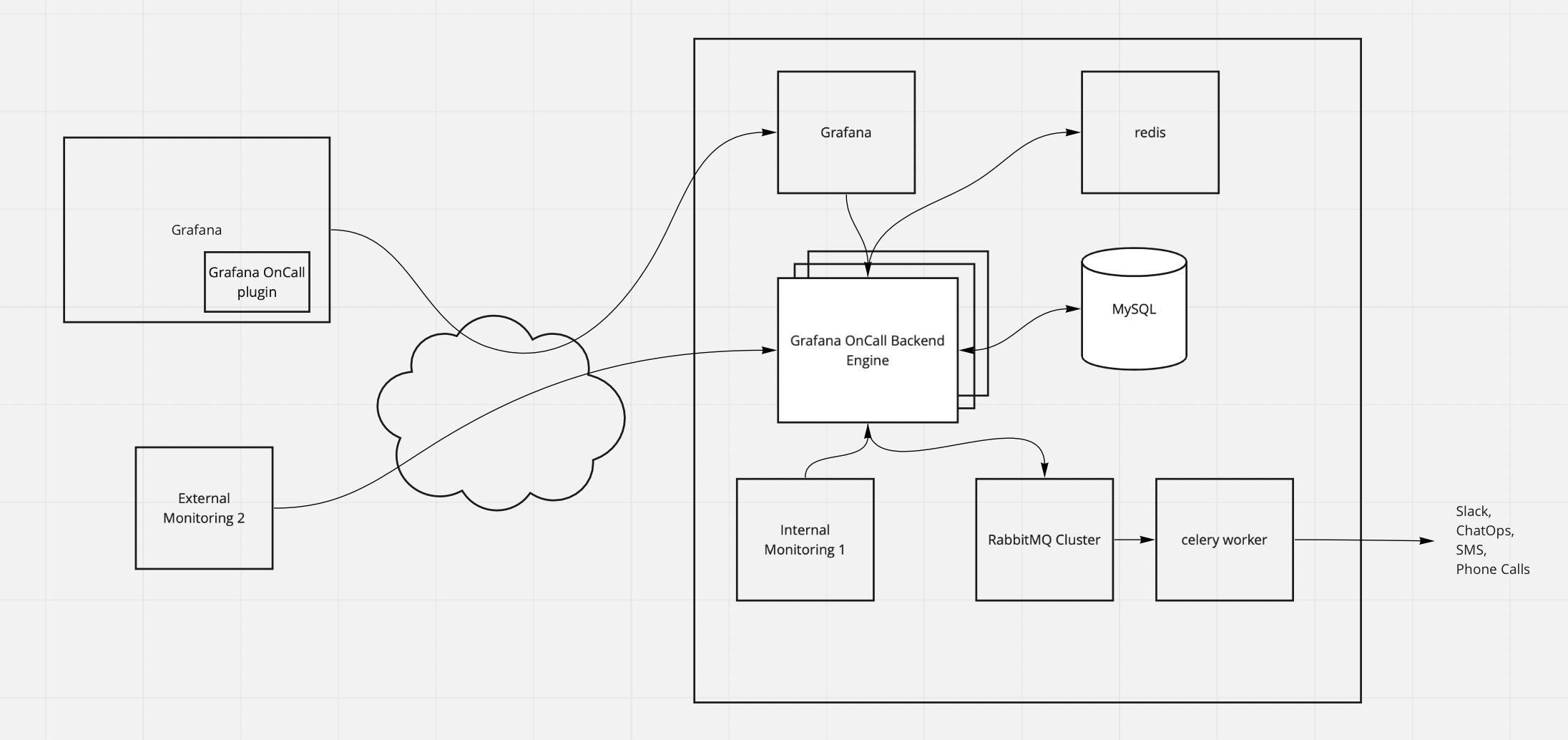
Production usage
Default helm chart configuration is not intended for production. The helm chart includes all the services into a single release, which is not recommended for production usage. It is recommended to run stateful services such as MySQL and RabbitMQ separately from this release or use managed PaaS solutions. It will significantly reduce the overhead of managing them. Here are the instructions on how to set up your own ingress, MySQL, RabbitMQ, Redis
Cluster requirements
- ensure you can run x86-64/amd64 workloads. arm64 architecture is currently not supported
- kubernetes version 1.25+ is not supported, if cert-manager is enabled
Install
Prepare the repo
# Add the repository
helm repo add grafana https://grafana.github.io/helm-charts
helm repo update
Installing the helm chart
# Install the chart
helm install \
    --wait \
    --set base_url=example.com \
    --set grafana."grafana\.ini".server.domain=example.com \
    release-oncall \
    grafana/oncall
Follow the helm install output to finish setting up Grafana OnCall backend and Grafana OnCall frontend plugin e.g.
👋 Your Grafana OnCall instance has been successfully deployed

  ❗ Set up a DNS record for your domain (use A Record and  "@" to point a root domain to the IP address)
     Get the external IP address by running the following commands and point example.com to it:

        kubectl get ingress release-oncall -o jsonpath="{.status.loadBalancer.ingress[0].ip}"

     Wait until the dns record got propagated.
        NOTE: Check with the following command: nslookup example.com
              Try reaching https://example.com/ready/ from the browser, make sure it is not cached locally

  🦎 Grafana was installed as a part of this helm release. Open https://example.com/grafana/plugins/grafana-oncall-app
     The User is admin
     Get password by running this command:

        kubectl get secret --namespace default release-oncall-grafana -o jsonpath="{.data.admin-password}" | base64 --decode ; echo

  🔗 Connect Grafana OnCall Plugin to Grafana OnCall backend:

     Fill the Grafana OnCall Backend URL:

          http://release-oncall-engine:8080

🎉🎉🎉  Done! 🎉🎉🎉
Configuration
You can edit values.yml to make changes to the helm chart configuration and re-deploy the release with the following command:
helm upgrade \
    --install \
    --wait \
    --set base_url=example.com \
    --set grafana."grafana\.ini".server.domain=example.com \
    release-oncall \
    grafana/oncall
Passwords and external secrets
As OnCall subcharts are Bitname charts, there is a common approach to secrets. Bundled charts allow specifying passwords
in values.yaml explicitly or as K8s secret value. OnCall chart refers either to secret created in sub-chart or
to specified external secret.
Similarly, if component chart is disabled, the password(s) can be supplied in external<Component> value
(e.g. externalMysql) explicitly or as K8s secret value. In the first case, the secret is created with the specified
value. In the second case the external secret is used.
- If
<subchart>.auth.existingSecretis non-empty, then this secret is used. Secret keys are pre-defined by chart. - If subchart supports password files and
<subchart>.customPasswordFilesdictionary is non-empty, then password files are used. Dictionary keys are pre-defined per sub-chart. Password files are not supported by OnCall chart and should not be used with bundled sub-charts. - Passwords are specified via
authsection values, e.g.auth.password. K8s secret is created.- If
<subchart>.auth.forcePasswordistrue, then passwords MUST be specified. Otherwise, missing passwords are generated.
- If
If external component is used instead of the bundled one:
- If existingSecret within appropriate external component values is non-empty (e.g.
externalMysql.existingSecret) then it is used together with corresponding key names, e.g.externalMysql.passwordKey. - Otherwise, corresponding password values are used, e.g.
externalMysql.password. K8s secret is created by OnCall chart.
Below is the summary for the dependent charts.
MySQL/MariaDB:
database:
  type: "mysql" # This is default
mariaDB:
  enabled: true # Default
  auth:
    existingSecret: ""
    forcePassword: false
    # Secret name: `<release>-mariadb`
    rootPassword: "" # Secret key: mariadb-root-password
    password: "" # Secret key: mariadb-password
    replicationPassword: "" # Secret key: mariadb-replication-password
externalMysql:
  password: ""
  existingSecret: ""
  passwordKey: ""
Postgres:
database:
  type: postgresql
mariadb:
  enabled: false # Must be set to false for Postgres
postgresql:
  enabled: true # Must be set to true for bundled Postgres
  auth:
    existingSecret: ""
    secretKeys:
      adminPasswordKey: ""
      userPasswordKey: "" # Not needed
      replicationPasswordKey: "" # Not needed with disabled replication
    # Secret name: `<release>-postgresql`
    postgresPassword: "" # password for admin user postgres. As non-admin user is not created, only this one is relevant.
    password: "" # Not needed
    replicationPassword: "" # Not needed with disabled replication
externalPostgresql:
  user: ""
  password: ""
  existingSecret: ""
  passwordKey: ""
Rabbitmq:
rabbitmq:
  enabled: true
  auth:
    existingPasswordSecret: "" # Must contain `rabbitmq-password` key
    existingErlangSecret: "" # Must contain `rabbitmq-erlang-cookie` key
    # Secret name: `<release>-rabbitmq`
    password: ""
    erlangCookie: ""
externalRabbitmq:
  user: ""
  password: ""
  existingSecret: ""
  passwordKey: ""
  usernameKey: ""
Redis:
redis:
  enabled: true
  auth:
    existingSecret: ""
    existingSecretPasswordKey: ""
    # Secret name: `<release>-redis`
    password: ""
externalRedis:
  password: ""
  existingSecret: ""
  passwordKey: ""
Running split ingestion and API services
You can run a detached service for handling integrations by setting up the following variables:
detached_integrations:
  enabled: true
detached_integrations_service:
  enabled: true
This will run an integrations-only service listening by default in port 30003.
Set up Slack and Telegram
You can set up Slack connection via following variables:
oncall:
  slack:
    enabled: true
    commandName: oncall
    clientId: ~
    clientSecret: ~
    signingSecret: ~
    existingSecret: ""
    clientIdKey: ""
    clientSecretKey: ""
    signingSecretKey: ""
    redirectHost: ~
oncall.slack.commandName is used for changing default bot slash command,
oncall. In slack, it could be called via /<oncall.slack.commandName>.
To set up Telegram token and webhook url use:
oncall:
  telegram:
    enabled: true
    token: ~
    webhookUrl: ~
To use Telegram long polling instead of webhook use:
telegramPolling:
  enabled: true
Set up external access
Grafana OnCall can be connected to the external monitoring systems or grafana deployed to the other cluster.
Nginx Ingress Controller and Cert Manager charts are included in the helm chart with the default configuration.
If you set the DNS A Record pointing to the external IP address of the installation with the Hostname matching
base_url parameter, https will be automatically set up. If grafana is enabled in the chart values, it will also be
available on https://<base_url>/grafana/. See the details in helm install output.
To use a different ingress controller or tls certificate management system, set the following values to false and edit ingress settings
ingress-nginx:
  enabled: false

cert-manager:
  enabled: false

ingress:
  enabled: true
  annotations:
    kubernetes.io/ingress.class: "nginx"
    cert-manager.io/issuer: "letsencrypt-prod"
Use PostgreSQL instead of MySQL
It is possible to use PostgreSQL instead of MySQL. To do so, set mariadb.enabled to false,
postgresql.enabled to true and database.type to postgresql.
mariadb:
  enabled: false

postgresql:
  enabled: true

database:
  type: postgresql
Connect external MySQL
It is recommended to use the managed MySQL 5.7 database provided by your cloud provider Make sure to create the database with the following parameters before installing this chart
CREATE DATABASE oncall CHARACTER SET utf8mb4 COLLATE utf8mb4_unicode_ci;
To use an external MySQL instance set mariadb.enabled to false and configure the externalMysql parameters.
mariadb:
  enabled: false

# Make sure to create the database with the following parameters:
# CREATE DATABASE oncall CHARACTER SET utf8mb4 COLLATE utf8mb4_unicode_ci;
externalMysql:
  host:
  port:
  db_name:
  user:
  password:
  existingSecret: ""
  usernameKey: username
  passwordKey: password
Connect external PostgreSQL
To use an external PostgreSQL instance set mariadb.enabled to false,
postgresql.enabled to false, database.type to postgresql and configure
the externalPostgresql parameters.
mariadb:
  enabled: false

postgresql:
  enabled: false

database:
  type: postgresql

# Make sure to create the database with the following parameters:
# CREATE DATABASE oncall WITH ENCODING UTF8;
externalPostgresql:
  host:
  port:
  db_name:
  user:
  password:
  existingSecret: ""
  passwordKey: password
Connect external RabbitMQ
Option 1. Install RabbitMQ separately into the cluster using the official documentation Option 2. Use managed solution such as CloudAMPQ
To use an external RabbitMQ instance set rabbitmq.enabled to false and configure the externalRabbitmq parameters.
rabbitmq:
  enabled: false # Disable the RabbitMQ dependency from the release

externalRabbitmq:
  host:
  port:
  user:
  password:
  protocol:
  vhost:
  existingSecret: ""
  passwordKey: password
  usernameKey: username
Connect external Redis
To use an external Redis instance set redis.enabled to false and configure the externalRedis parameters.
redis:
  enabled: false # Disable the Redis dependency from the release

externalRedis:
  host:
  password:
  existingSecret: ""
  passwordKey: password
Update
# Add & upgrade the repository
helm repo add grafana https://grafana.github.io/helm-charts
helm repo update

# Re-deploy
helm upgrade \
    --install \
    --wait \
    --set base_url=example.com \
    --set grafana."grafana\.ini".server.domain=example.com \
    release-oncall \
    grafana/oncall
After re-deploying, please also update the Grafana OnCall plugin on the plugin version page. See Grafana docs for more info on updating Grafana plugins.
Uninstall
Uninstalling the helm chart
helm delete release-oncall
Clean up PVC's
kubectl delete pvc data-release-oncall-mariadb-0 data-release-oncall-rabbitmq-0 \
redis-data-release-oncall-redis-master-0 redis-data-release-oncall-redis-replicas-0 \
redis-data-release-oncall-redis-replicas-1 redis-data-release-oncall-redis-replicas-2
Clean up secrets
kubectl delete secrets certificate-tls release-oncall-cert-manager-webhook-ca release-oncall-ingress-nginx-admission
Troubleshooting
Issues during initial configuration
In the event that you run into issues during initial configuration, it is possible that mismatching versions between
your OnCall backend and UI is the culprit. Ensure that the versions match, and if not,
consider updating your helm deployment.